If you are a long-time Windows user, then you may know a trick to enable “God Mode”. God Mode gives access to all of the operating system’s control panels from within a single folder. You can enable God Mode in Windows 10 and its previous versions as well. In fact, the real name of God Mode is Windows Master Control Panel Shortcut. Most users don’t need it. But it is useful if you are in IT related job and manage a computer and obviously for those advanced enthusiasts.
So, let’s see the process of creating it.
Enable God Mode in Windows
- Make sure your system account has administrative privileges
- Right-click on the Windows desktop and choose New > Folder
- Name the folder: GodMode.{ED7BA470-8E54-465E-825C-99712043E01C} and hit enter
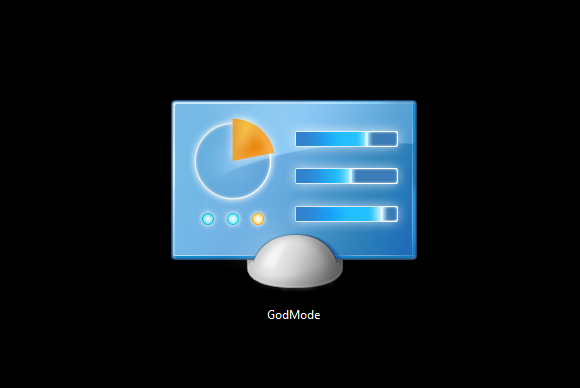
You can actually name the folder anything you want like MasterControl. Simply replace 'GodMode' before the {....} characters to your liking.
That's it. Now when you open that folder, you can see different settings, including Administrative Tools, Color Management, Devices and Printers, etc.
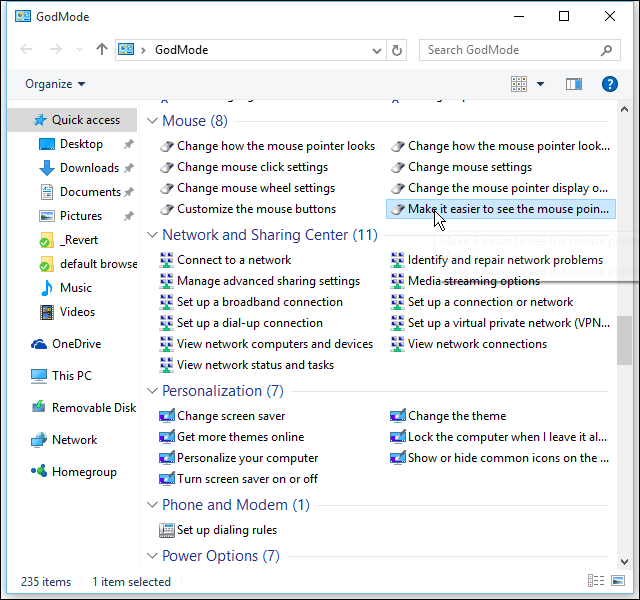
It’s not that exciting tweak but if you are a serious user, you love having all of these shortcuts in one spot which comes in handy.
Article Last updated: November 25, 2025

![Best Flagship Smartphones To Buy In Nepal [Updated 2026]](https://media.gadgetbytenepal.com/2026/04/Best-flagship-smartphones-to-buy-in-Nepal-2026.jpg)