Why Trust Gadgetbyte?
At Gadgetbyte, we invest substantial hours into rigorously testing each product or service we review, guaranteeing that you make informed purchases. Learn more about our testing process.
Review Overview
3.6
UI and ease of use
9/10
Features
8.5/10
Recovery
5/10
Memory Optimization
8/10
Value for Money
5/10
As the need for data recovery is at a peaking phase, the iBoysoft made a good attempt to fill the gap. It has user-friendly UI so navigating the features is hassle-free. And since most of the features can be accessed in the free version, you don’t essentially have to pay for the tool unless you need to store bulk files. But despite these niceties, there are still a lot of things to improve. I would’ve totally loved and fully recommend the software if it had been a little more consistent with the restored files. So I hope the iBoysoft team will work on the flaws I mentioned and release a software update to make it even better.
How to get it?
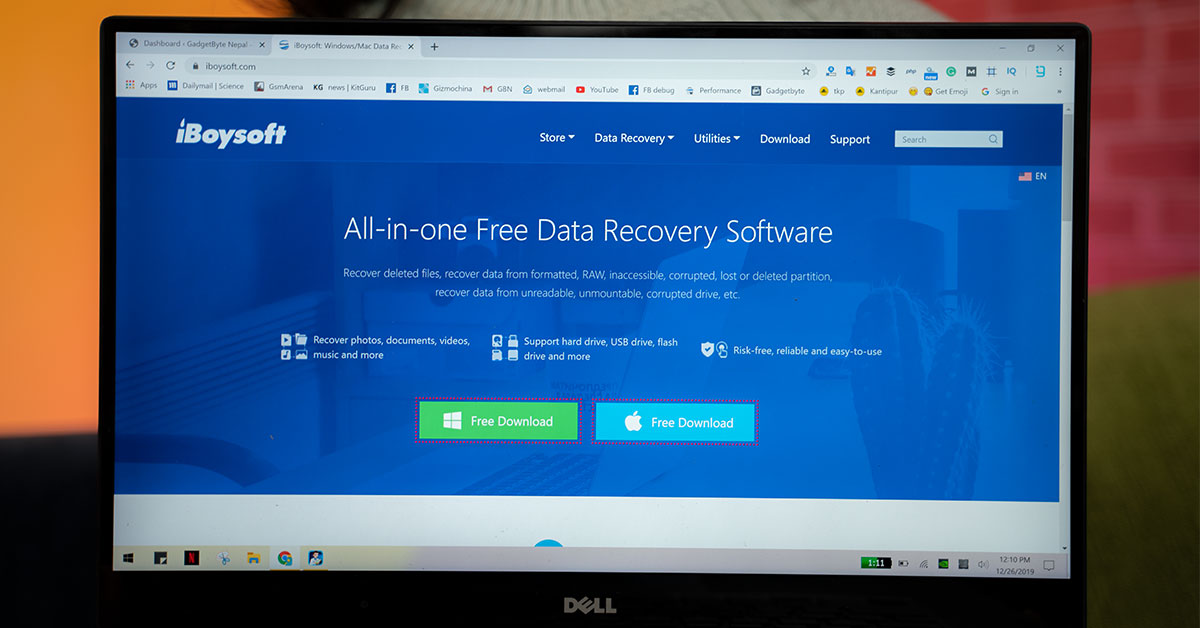
You can easily get the software on their website. They have software both for Windows data recovery and Mac data recovery. So based on the operating system of your computer, you can get it for yourself. The software comes in two options: Free and Premium. As the name implies, the free variant won’t cost you anything to install the software and to recover the files. However, as the free version comes with just a limited set of features, you won’t be able to make full use of its potential. The Premium version will cost you $69.95, $199, and S299 for the Home, Professional, and Technician edition respectively. But for the academic users (teachers, students, educational staff, etc.), government departments, charity, and non-profit organizations, iBoysoft is providing a noteworthy 20% discount in the purchase of the software. With the Home edition, you will get a lifetime license key of the software, which you can use it just for one PC. Similarly, with some added features, Professional edition lets you use the license key for up to two PCs. The Technician Edition is the richest of all when it comes to features. If you have the Technician edition, you will be able to recover files from five different PCs.Ease of use
iBoysoft is fairly easy to use. When you run the software, you will see a window with various drives (both internals and externals), just like the window you see while pressing the “My Computer” or “This PC” button on Windows PCs. Due to the familiar UI, it’s really easy to navigate.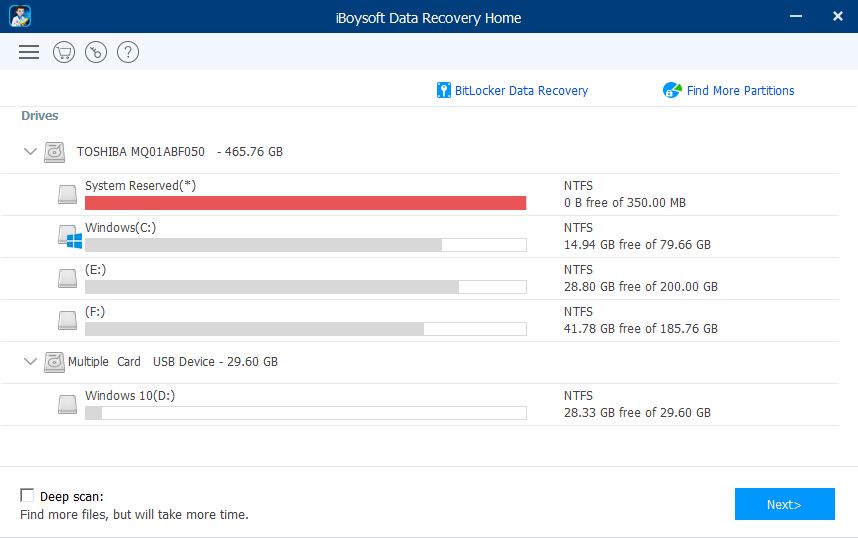
iBoysoft Data Recovery Tool Features
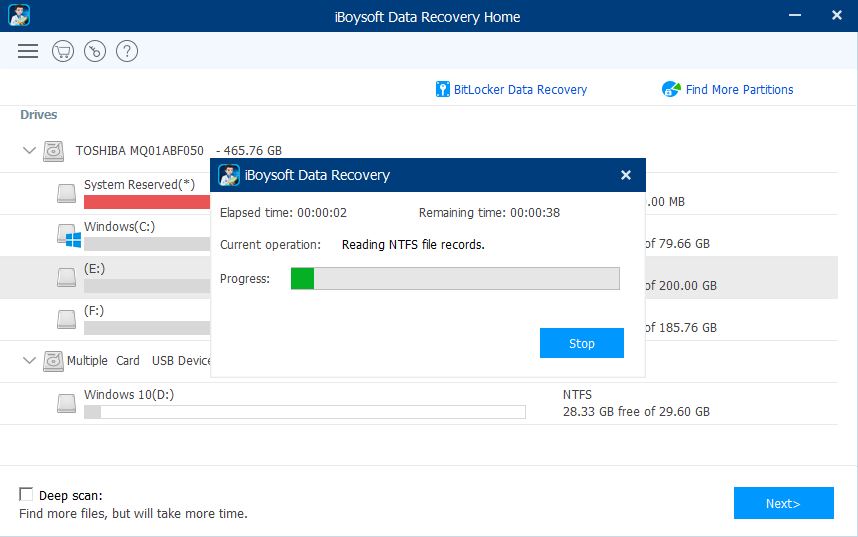
Since it’s a data recovery tool, the primary and essential feature of it is to recover your lost and deleted files. And the tool has its own quirks when it comes to recovering such files. As I mentioned earlier, the preliminary step to recovering the files is to scan the drive. And there are two ways you can scan a drive. The Quick Scan option prioritizes new and big files. The “Deep Scan Mode”, on the other hand, tries to find more files inside the drive. So with the “Deep Scan” feature turned on, you will have a better chance of finding your lost/deleted files and recovering it successfully. Although it’s a useful feature and most of the time full-proof, it takes a considerate amount of time to scan through the drive. So make sure you have plenty of time before starting the recovery process. On my use, deep scanning of a 200GB drive took me over 3 hours and that was really frustrating. So to cope up with the issue, developers have included the "Save Session” feature, which you can access through the Hamburger Button near the top left corner. With the “Save Session” feature, you can save the scan results to your PC and access the drive whenever you feel like recovering the deleted. It saves the files in .sr format and the good thing is you can rename those files as well. This helps to easily find the files and scan up the drive really quick.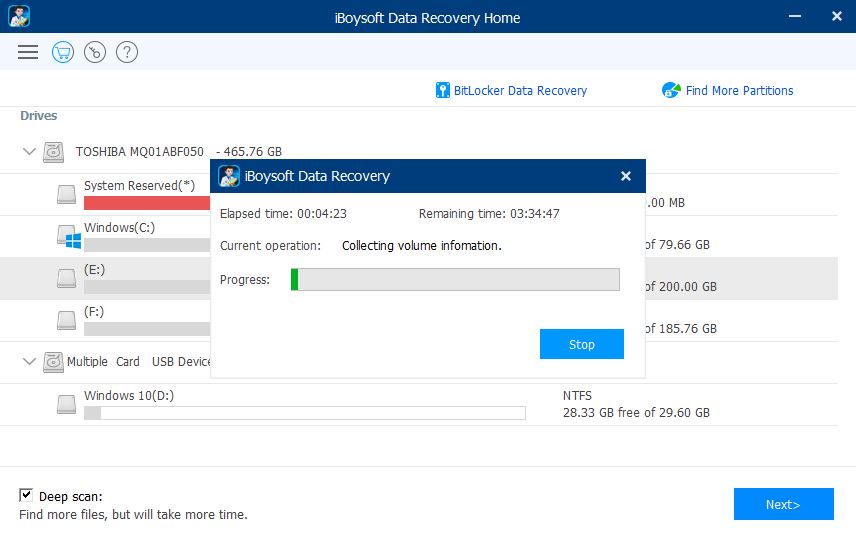
Recovery
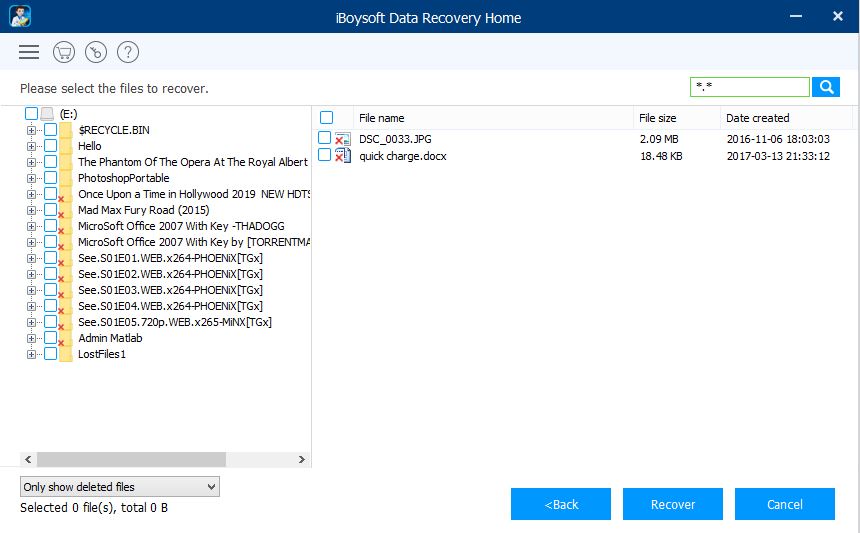
The process to recover the files is really easy. Firstly, you need to select the file to be recovered, secondly, press the “Recover” button and select the location, where you want to save the file. Then bam, you’ll have the file restored to your computer. But if you are using the Free version, you can only restore the files and folders up to 1GB. So keep that in mind while starting the recovery process. Although the recovery process sounds fairly simple, the process is not all sunshine and roses. In multiple scenarios, the software showed files with the file size of 0KB, which were barely any good to recover. And some of the files had correct file size, however, they didn’t function well after they got recovered.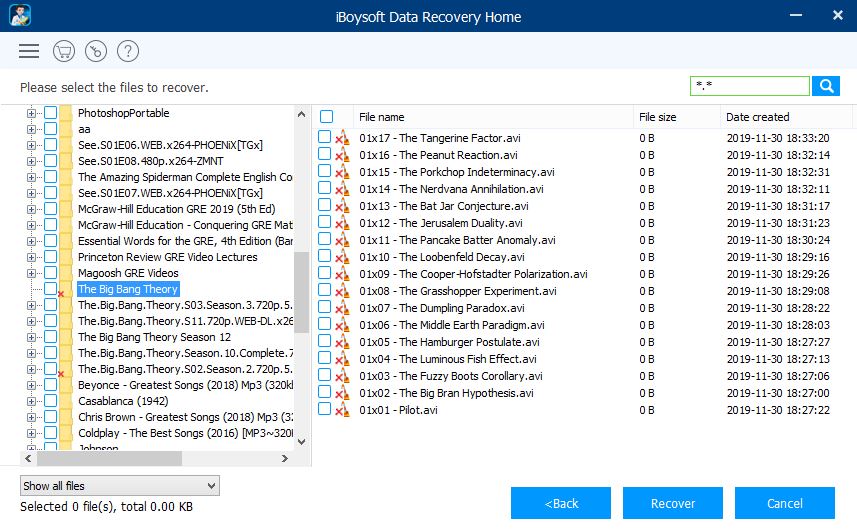
Memory Consumption
Since the software is fairly light (3.36MB for Windows PC), it doesn’t use up much space on your computer. Even while scanning the drive (the process at which it uses maximum resources), the memory usage and CPU usage reach up to 70% and 25% respectively. So even for the non-powerful computers, running the software shouldn’t be that alarming.Conclusion
As the need for data recovery is at a peaking phase, the iBoysoft made a good attempt to fill the gap. It has user-friendly UI so navigating the features is hassle-free. And since most of the features can be accessed in the free version, you don’t essentially have to pay for the tool unless you need to store bulk files. But despite these niceties, there are still a lot of things to improve. I would’ve totally loved and fully recommend the software if it had been a little more consistent with the restored files. So I hope the iBoysoft team will work on the flaws I mentioned and release a software update to make it even better.Article Last updated: December 26, 2019


![Samsung Mobile Price in Nepal [Updated 2026]](https://media.gadgetbytenepal.com/2026/06/Samsung-Mobile-Price-in-Nepal-2026.jpg)